PokerTracker 4 HUD Setup Guide: From Install to First Hand (2026)
A real PokerTracker 4 HUD setup walkthrough for 2026 — install, hand history config, HUD layout, popups, and the gotchas nobody mentions.
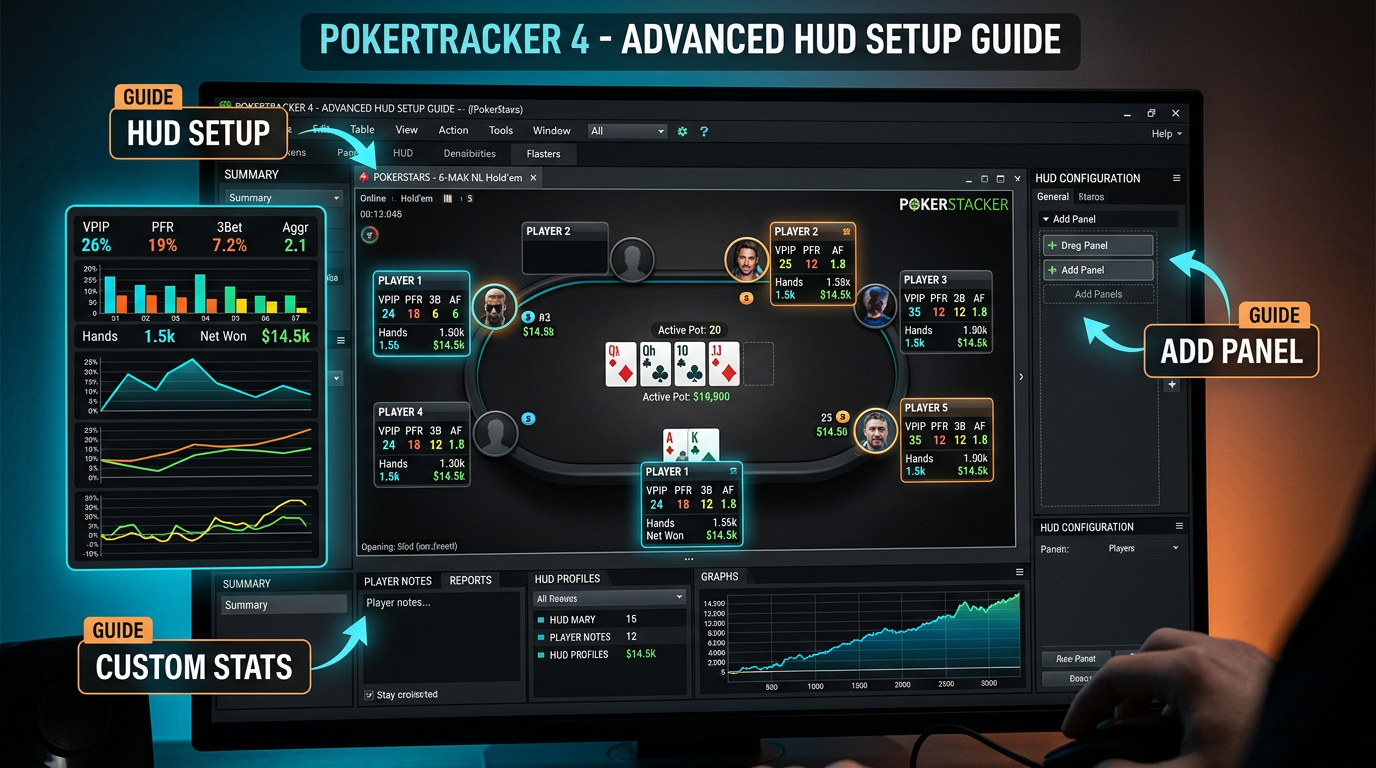
PokerTracker 4 HUD Setup Guide: From Install to First Hand (2026)
The first time I tried to set up PokerTracker 4 was in 2018, and I gave up after two hours. The hand history path was wrong, the HUD wasn't appearing, and the documentation kept referring to settings that had moved between versions. I closed everything and went to bed. Three days later I tried again with a YouTube tutorial open in the corner of my screen, and it took me another hour, but I got it working.
In 2026, the install is much smoother. The auto-detection is better. The defaults make more sense. But there are still gotchas, and the official documentation still glosses over the parts that actually trip people up. So this is the guide I wish I'd had eight years ago — written from the perspective of someone who's set this up dozens of times on dozens of machines, helped friends do it, and watched students fumble through it on screen shares.
I'm going to take you from "downloaded the installer" to "playing your first session with a working HUD that shows useful stats" in one read. I'll flag every place where I've seen people get stuck, and I'll tell you what to do when something doesn't work. By the end you'll have a working PT4 install, your hands importing automatically, and a HUD layout that's actually useful — not the bloated default config that ships with the product.
A few prerequisites before we start. You need PokerTracker 4 purchased ($99.99 one-time as of 2026, no subscription). You need to know which poker site(s) you play on, because the hand history path setup is site-specific. You need admin rights on your computer for the install. And you should set aside about an hour total — 20 minutes for install and configuration, 40 minutes for the HUD customization that actually matters.
If you're on a Mac, the process is slightly different at a few steps but the overall flow is the same. I'll call out Mac-specific notes where they apply. PT4 has had native Mac support for years, so you don't need any wrappers or workarounds.
Step 1: Installation and First Launch
Download the installer from the official PT4 site. Don't get this from anywhere else — there are scam sites that imitate the URL. The legitimate installer is signed and your OS will recognize it.
Run the installer. On Windows it'll ask where to install (default is fine), then walk through a few clicks. On Mac you drag the app to your Applications folder. Total install time is maybe two minutes.
When you launch PT4 for the first time, it'll ask you to create a database. This is the first place people screw up. Don't use SQLite if you're going to import more than ~100,000 hands. SQLite is fine for casual play but it gets slow at scale. Choose PostgreSQL instead — PT4 will install and configure it for you, you don't need to know anything about databases. Just pick PostgreSQL, click through, and let it do its thing. This will save you a painful migration later.
Name your database something sensible like "Main" — you can have multiple databases if you want to keep cash and tournaments separate, but for now one is fine.
Once the database is up, PT4 will ask you to enter your license key. Paste it from your purchase email. The software activates online, takes a few seconds.
You're now in the main interface. It looks like Windows 7 software. That's normal. The interface hasn't changed much in years, and you'll stop noticing after a week.
Step 2: Hand History Auto-Import Setup
This is where most people get tripped up. PT4 needs to watch a folder where your poker site writes hand history files, and import them in real time as you play. If this isn't configured correctly, your HUD won't show stats and your database won't grow.
Go to Configure > Sites and Currencies and find your site. Click "Edit" and you'll see the auto-import settings.
The hand history path is the critical bit. PT4 tries to auto-detect it, and in 2026 the auto-detection works most of the time, but always verify. Click "Browse" and confirm the path actually contains hand history files. They'll be .txt files (or .xml on some sites) with names that include dates and table identifiers.
Common locations:
- PokerStars on Windows:
C:\Users\[YourName]\AppData\Local\PokerStars\HandHistory\[YourScreenName] - PokerStars on Mac:
~/Library/Application Support/PokerStars/HandHistory/[YourScreenName] - GG Network: typically
C:\Users\[YourName]\AppData\Roaming\GGNetwork\HandHistory - partypoker:
C:\Users\[YourName]\AppData\Local\partypoker\Hand Histories - Winamax:
C:\Users\[YourName]\AppData\Roaming\winamax\documents\accounts\[YourScreenName]\history
If you've never enabled hand history saving on your poker client, do that first. On most clients it's under Settings > Hand History > "Save my hand histories" with a folder picker. Make sure to enable text hand histories specifically — some clients also have a separate "summary" or "tournament summary" save option you can leave off.
Once the path is set in PT4, click "Apply" and toggle "Auto-Import" on. There's usually a button at the top of the PT4 interface that says "Auto-Import" with a green/red indicator. Green means it's watching the folder.
Test it before you trust it. Play a single hand on your poker site (or just sit at a table for a minute and let a hand finish). Then check PT4 — the hand should appear in your database within 30 seconds. If it doesn't, your path is wrong, your hand history saving isn't enabled, or your poker site is writing to a different folder than you think.
This is the #1 setup problem I see. People configure everything else perfectly, then sit down to play and wonder why their HUD is blank. Verify auto-import is working before you do anything else.
Step 3: Importing Your Existing Hand History
If you've been playing for a while, you probably have months or years of hand history files sitting in that folder. PT4 will only auto-import new hands going forward — to populate your database with old hands, you need to do a manual import.
Go to File > Import Hand Histories. Browse to your hand history folder. Select all the .txt files, or use "Import Folder" if you have nested directories.
For very large imports (millions of hands), this can take hours. Let it run overnight if needed. Don't interrupt it — partial imports can leave the database in weird states.
A note on hand history retention: most poker sites only save the last 30 or 60 days of hands locally by default. If you've never imported them into a tracker before, you've already lost most of your historical data. Some sites let you request older hand histories through support. PokerStars in particular has a "Request Hand Histories" option that emails you up to a year of historical data; this is worth doing once for any serious player.
While you're at it, configure PT4 to save hand histories to its own backup folder. Go to Configure > Auto-Import and enable "Archive imported hands." This creates a second copy of every hand PT4 imports, in a folder you control. If your poker client ever wipes your local history, you have a backup.
Step 4: Building a HUD Layout That's Actually Useful
The default HUD that ships with PT4 is overwhelming. Twelve stats per player, all in tiny text, and you can't actually read them while making decisions. You need to customize.
Go to Configure > HUD > Edit HUD Profile. You'll see the layout editor.
Here's the HUD I run for 6-max NL cash games. It's tested, it's readable, it doesn't get in the way:
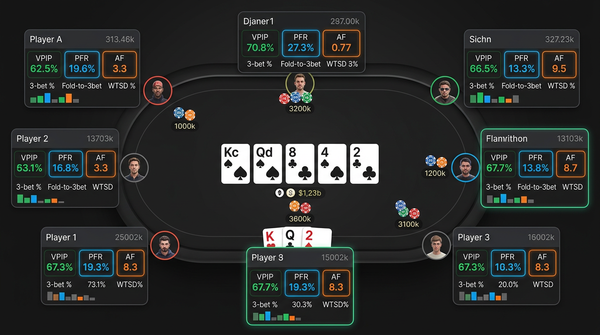
Main row (always visible, single line under each player):
- Total hands played (sample size)
- VPIP / PFR (formatted as
30/22for example) - 3-bet preflop %
- Fold to 3-bet %
- Total aggression frequency
That's five numbers. They fit on one line. They're the most informationally dense stats you can show.
Color coding: I set VPIP to color-code by range — green for 18-25, yellow for 26-32, orange for 33-40, red for >40. PFR similarly. This lets me read player types at a glance: greens are TAGs, oranges are loose-passive, reds are maniacs. You don't even have to read the numbers; the colors tell you the story.
Popups: This is where the deeper stats live. Right-click a player to open the popup. I have my popup organized into four tabs:
- Preflop: position-based VPIP/PFR/3-bet, RFI by position, defense vs steal, 4-bet stats
- Flop: cbet flop overall and by position, fold to flop cbet, donk bet, check-raise frequency
- Turn: cbet turn after cbet flop, fold to turn cbet, double barrel frequency, check-raise turn
- River: river bet sizing, fold to river bet, river check-raise
Building this popup takes maybe 30 minutes the first time. PT4 includes some sample popups you can clone and modify; that's a good starting point.
Tournament HUD: if you play MTTs, build a separate HUD profile that includes M-ratio, ICM-relevant stats, push/fold tendencies, and stack-size-aware aggression. Don't try to use the same HUD for cash and tournaments — the relevant stats are different.
Step 5: Stat Configuration Details (the Stuff Nobody Explains)
A few specific gotchas in PT4's HUD configuration that took me forever to figure out.
Sample size warnings. A player with 30 hands showing a "10% 3-bet" stat is meaningless — that's three hands. Configure stats with minimum sample sizes so they only display once you have enough data to trust them. In the stat editor, you can set a "minimum opportunities" threshold. I use 50 opportunities for most postflop stats and 30 for preflop position-specific stats. Below the threshold, the stat just doesn't show.
Pool stats vs individual stats. PT4 lets you display pool averages (the average for everyone in your database at this stake) next to a specific player's stat. This is incredibly useful for spotting deviations. "Player X folds to cbet 45% but the pool average is 60%" tells you he's a sticky calldown — way more informative than the raw 45%.
Custom stats. You can build your own. I have a custom stat called "fold to delayed cbet" — the frequency a player folds turn after I check back flop and bet turn. PT4 lets you write SQL-like expressions to define these. It takes time to learn but pays off when you have a specific question PT4 doesn't answer out of the box.
Multi-tabling considerations. If you 6+ table, your HUD needs to be sparser. Drop the popup-only stats from the main display, use color coding aggressively, and minimize text. You can build different HUD profiles and switch between them based on table count.
Step 6: Integrating With Your Poker Client
PT4 needs to know where each table is on your screen so the HUD can position correctly above each player seat. This is called "table detection" and it sometimes requires manual help.
For most major poker clients, PT4's auto-detection works. Open a table on your poker site, open PT4, and the HUD should appear within 5–10 seconds. If it doesn't:
- Check that the table window title contains identifiable info (table name, blind level). Some clients have settings to add more info to the title.
- Try resizing the table window. PT4 detects based on window dimensions and content; an unusual size can confuse it.
- Check Configure > HUD > Site-specific HUD options for any per-site quirks.
On macOS, there's an extra step: you need to grant PT4 screen recording permission in System Preferences > Privacy & Security > Screen Recording. Without this, PT4 can't see the poker tables and the HUD won't appear. This is a 2020+ macOS thing and has tripped up a lot of people.
For PokerStars specifically, you may need to disable any "anonymous tables" or "Zoom" specific settings depending on whether you play those formats.
Step 7: Database Hygiene From Day One
A few habits to build now that will save you headaches later.
Daily backups. PT4 has a built-in backup feature under Database > Backup Database. Set it to back up daily to an external drive or cloud folder. Database corruption happens — usually from a bad shutdown or disk error — and a recent backup is the difference between losing a day vs losing years of data.
Tag your sessions. After each session, add a quick note in the session view: "ran bad," "felt focused," "kept tilting in 3bp," whatever. These tags become invaluable when you're reviewing performance over time and trying to find patterns.
Archive periodically. Every 6 months or so, archive hands older than two years to a separate database. Your active database stays fast, and you can still query historical data when you need to.
Don't delete hands. Even bad hands. Even hands you're embarrassed about. The full database is your most valuable asset.
Step 8: First Session Sanity Check
Before you sit down to play your first real session with the new setup, do a sanity check:
- Open PT4. Verify auto-import is on (green indicator).
- Open your poker client and navigate to a table. Don't sit yet.
- After 30 seconds, check that the HUD overlay is appearing on the table. You won't see stats yet for new players, but the HUD frames should be visible.
- Sit at the table, play a few hands.
- Check PT4's session view. Hands should appear in real time.
- After 10–20 hands, verify your own HUD shows reasonable VPIP/PFR for what you've actually played.
If all six steps pass, you're set. If any step fails, that's your debugging starting point.
Quick Reference Tables
| Setup step | What to do | Common gotcha |
|---|---|---|
| Install | Download from official site, choose PostgreSQL | Don't use SQLite for serious volume |
| Hand history path | Verify with Browse, test with one hand | Path varies by site and OS |
| Existing hand import | File > Import, run overnight if needed | Most sites only retain 30–60 days locally |
| HUD layout | Build custom, don't use default | Default is too cluttered to read |
| Popup config | Organize by street | Takes 30 min, do it once |
| Table detection | Auto-detect usually works | Mac needs Screen Recording permission |
| Backups | Daily, external location | Never skip — corruption happens |
| HUD stat | Why it matters | Sample size threshold |
|---|---|---|
| VPIP | Player type at a glance | 50+ hands |
| PFR | Aggression preflop | 50+ hands |
| 3-bet | Light vs polarized 3-bet ranges | 100+ hands |
| Fold to 3-bet | When to bluff 3-bet | 50+ opportunities |
| AF (aggression) | Postflop tendencies | 100+ hands |
| Cbet flop | When villain has air | 30+ opportunities |
| Fold to cbet | When to barrel | 30+ opportunities |
| Site | Hand history path (Windows default) | Mac default |
|---|---|---|
| PokerStars | AppData\Local\PokerStars\HandHistory |
~/Library/Application Support/PokerStars/HandHistory |
| GG Network | AppData\Roaming\GGNetwork\HandHistory |
App is Windows-primary; check support |
| partypoker | AppData\Local\partypoker\Hand Histories |
Windows-primary |
| Winamax | AppData\Roaming\winamax\documents\accounts |
Windows-primary |
Things I Wish I'd Known Before My First Setup
A few specific lessons that would have saved me time.
Don't skip the popup config. I ran with the default popup for two years before I built my own. Once I did, I realized I'd been making decisions on incomplete information for thousands of hands. Spend the time.
Sample size matters more than you think. Early on I'd see a player with 25 hands and react to their stats. Anyone under 100 hands is essentially random. Anchor your reads on players with 500+ hands; everyone else, default to assumptions about pool tendencies.
The HUD is not a substitute for thinking. This is the failure mode I see most. You see "fold to cbet 70%" and you cbet your air. But maybe villain just three-bet you preflop and you're on a low SPR turn — in which case the cbet stat is irrelevant. The HUD informs decisions, it doesn't make them.
Update your HUD every six months. As your game evolves and you play different stakes, the stats you care about will change. Periodically rebuild your layout to match what you actually want to see.
Learn one popup workflow really well. Don't try to memorize 30 stats. Learn 5–10 deeply. Know what each one means in context, when to trust it, when to ignore it. Mastery beats coverage.
When Things Go Wrong
A short troubleshooting guide based on the most common issues.
"My HUD isn't showing up." Check auto-import is on. Check the hand history path is correct. Check (Mac) screen recording permission. Restart PT4 and your poker client.
"Stats are showing for me but not for opponents." This is a sample size issue. Opponents need to play hands you can see — sit at a table for 50+ hands and they'll start showing.
"PT4 keeps crashing." Almost always a database issue. Run Database > Maintenance > Optimize Database. If that doesn't fix it, restore from backup.
"My HUD is in the wrong position." Click and drag it during a session. PT4 saves the position per-table-size.
"Hands are importing but slow." Switch to PostgreSQL if you're on SQLite. If you're already on PostgreSQL, run optimization.
"I can't see hands from a specific session." Check the hand history file actually exists in the source folder. Sometimes poker clients fail to write hand histories due to disk space or permissions.
Final Thoughts
PT4's setup process has gotten better over the years but it still rewards patience. Spend an hour doing it right and you'll have a HUD that serves you for the next decade. Rush it and you'll fight with broken auto-import for weeks.
The hardest part isn't installing the software. It's resisting the temptation to immediately open 10 tables and start playing without verifying your config. Do the sanity check. Confirm auto-import is working. Confirm your HUD shows reasonable stats. Then play.
If you're new to PT4 entirely, the official PokerTracker 4 demo gives you 30 days to test the full software before buying. That's enough time to confirm the workflow fits how you study. The $99.99 one-time price is, in my opinion, the best value in poker software — once you commit, you're set for years.
Once you have PT4 running, the next thing to think about is what you do with all the data. A HUD without a study routine is half the value. I run a weekly review where I pull saved reports, identify drift in my stats, and pick one leak to focus on for the coming week. That's a topic for another article — but it's where the real money is.
Get the install right this weekend. Play your first session with the new HUD. Tag the session. Back up the database. You've now done more setup than 80% of low-stakes regs ever bother with, and you have the foundation for serious improvement.
Six Months In: What Changes About Your PT4 Setup
The setup I described above is the day-one config. After six months of real use, you'll want to tune things you didn't even know mattered. Here's what I had to adjust after my first six months on PT4 back in 2019, and what almost every coaching student I've onboarded has had to revise.
Sample size thresholds drift. The 50-hand minimum I recommend on day one is conservative. After six months, you'll find that some stats stabilize at lower samples than others. VPIP and PFR are reliable at 30 hands. 3-bet needs 100. River-specific stats need 200+. You'll start setting per-stat thresholds rather than a flat 50.
Color coding ranges need recalibration based on the population you actually play. The "TAG = green" boundaries I gave assume a roughly standard low-stakes 6-max population. If you play a high-rake site where everyone is tight, your green band shifts down. If you play a soft fish-heavy site, your red band has more occupants and your color rules need to push the bands wider so the colors stay informative.
Custom stats accumulate. You'll find yourself wishing for a stat that doesn't exist in default PT4 — "fold to delayed cbet on dry boards," "donk turn after check-call flop OOP." Build them. After a year you'll have 5–10 custom stats that nobody else uses, and they'll be your real edge.
Notes proliferate. PT4's note system is text-based, and after six months you'll have hundreds of player notes that are increasingly hard to scan. Either commit to a tagging convention you'll follow forever, or accept that notes are short-lived and re-do them periodically.
The replayer becomes more important. On day one you'll mostly use PT4 for stats and reports. By month six, you'll spend most of your review time in the replayer, watching specific hands play out. Customize the replayer settings (auto-advance speed, what's visible) so it matches your review style.
My Actual PT4 Workflow After Eight Years
For context, here's the honest, unedited weekly workflow I run on PT4 in 2026.
Sunday morning, 30 minutes. Run "Weekly Health Check" — a saved report with 18 panes covering my key stats. I'm scanning for drift. The report opens to whatever I last saved. Anything that's moved more than 2 sigma flagged.
Sunday afternoon, 60 minutes. Take the flagged stats and pull example hands. Filter for "all hands matching this scenario" and click through 10–20 of them in the replayer. Identify whether the drift is variance or a real pattern.
Monday through Thursday, post-session, 5 minutes per session. Tag the session ("ran fine," "felt off in BB," etc.). Don't skip this. The tags are gold a month from now when you're trying to remember what was happening.
Wednesday evening, 30 minutes. Mid-week pulse. Pull the past 3 days, look at the biggest losing hands. Quick mental review of each — was the loss reasonable or did I misplay?
Friday evening, 45 minutes. End-of-week review. Pull losing sessions of the week. Pick three hands that felt off and run them through GTO Lab. Add anything I learned to my running "leaks" doc.
Saturday, no PT4. Brain rest day. Hands accumulate from Friday night sessions but I don't look at them.
This is roughly 3 hours of PT4 work per week, on top of about 25 hours of play. That ratio is what I aim for. New players sometimes flip the ratio (10 hours of study, 5 hours of play) and wonder why they're not improving. You can't replace play with study; you have to do both.
Configuration Tips Most Setup Guides Skip
Specific small tweaks that took me a long time to figure out and that the docs don't cover well.
Set your own seat to a distinct visual treatment. I make my own HUD a different color from opponents so I don't accidentally read my own stats when I'm trying to read someone else's. Sounds dumb until it happens to you in a tilt moment.
Use position-aware popups, not global ones. A popup that shows "VPIP 28" is half the information. A popup that shows "VPIP 28 (UTG 12, MP 18, CO 24, BTN 42, SB 30, BB 22)" tells you whether the guy is positional or not, which changes how you exploit him.
Set up a "leaks" tag for sessions. When something feels off mid-session, tag the session immediately rather than relying on memory. PT4 lets you add tags from the session toolbar. Three seconds, saves real time later.
Build separate HUDs for cash and tournaments and switch them via hotkey. The relevant stats differ. Cash wants VPIP/PFR/3-bet/AF. Tournaments want stack-aware stats and ICM-relevant numbers. One HUD that's "almost right for both" is the worst answer.
Save common reports as named templates. PT4 lets you build a report once and save it. After six months, I had 20 saved reports for different study purposes. Pull-up time goes from "build the filter again" to "click and read." Compounds enormously.
Color-code stats not just by value but by reliability. I have my HUD set so stats with low sample appear in italics. The number is still there but visually downweighted, so I don't accidentally trust a 35% fold-to-3bet from a 12-hand sample.
What I'd Tell Someone Setting Up PT4 for the First Time
After helping a lot of people through this, the consistent advice I give:
Don't try to learn everything in week one. The interface is dense. You'll feel overwhelmed. Pick three things to use well in your first month — auto-import, your custom HUD, the session view — and ignore the other 80% of features. The rest will become useful when you have specific questions.
Spend more time on the HUD layout than feels reasonable. The default is unusable. Rebuilding it takes an hour. Most setup guides gloss over this. Don't.
Back up before you do any major customization. PT4's settings are stored in the database; if you screw up a config, restoring is much easier from a backup than trying to undo by hand.
Join one community where PT4 users share configs. Discord servers exist for both PT4 and HM3 specifically. Borrow a popular HUD config as a starting point rather than building from scratch. You'll modify it anyway, but you won't waste hours on the structural skeleton.
Resist the urge to add more stats. Every stat you add is one more thing you have to ignore at the table. The discipline of "five stats main, ten stats popup" beats "fifteen stats main, twenty stats popup" every single time.
The PT4 you'll be running in five years is not the PT4 you set up this weekend. It's going to evolve. Your job at install is to get it functional, not to get it perfect. Functional this weekend, refined over the next year, is the right pacing.